

Starter · Level 1 of 3
Some links below are affiliate links. If you buy through them, Automate My Life may earn a commission at no extra cost to you, which helps keep the site free. Only gear worth recommending gets a link here.
For the hardware, Google’s current entry-level pick is the Google Home Speaker with Gemini (about $99.99) — Google discontinued the older Nest Mini in 2026, so it is no longer the cheapest way in. Want a screen for timers and video instead? A Nest Hub covers that.
Google Home is the smart-home system inside Google speakers and displays that controls compatible lights, plugs, thermostats, cameras, and other devices. Google now says Gemini for Home is available on Google Home speakers, replacing Google Assistant on eligible speakers and displays with a more conversational voice assistant. The Google Home app also includes Ask Home, which can control devices, answer simple questions about your home, and — with Google Home Premium — create automations from a plain-language request. This guide covers what you can set up now, which features cost extra, and why availability can still differ from one home to another.
Everything here runs through the Google Home app and a Nest speaker or display; you do not need a separate hub. If you have not committed to an ecosystem yet, weigh it against the others in the Alexa vs Google Home vs Apple HomeKit comparison first. If Google Home is already your home base, read on.
Build your first Google Home automation, step by step
The most useful starting automation is a morning routine that wakes the house with you. Here is the whole setup:
- Open the Google Home app and tap Automations (older versions label this Routines).
- Tap + to add a household automation, or pick one of Google’s ready-made starters and edit it.
- Set the starter. Choose a time (say 6:45 on weekdays) or the voice phrase “Hey Google, good morning”. You can add both so either one fires it.
- Add the actions: turn on the bedroom lights low, set the thermostat to your daytime temperature, turn on the coffee maker’s plug, then add “tell me about my day” so Assistant reads the weather, your calendar, and a news brief.
- Pick the speaker that should talk and play media, then save. Test it by saying the phrase rather than waiting for morning.
A bedtime version is the mirror image: a "goodnight" phrase that turns everything off, drops the thermostat, locks the door, and optionally plays sleep sounds. Between a morning and a bedtime automation, you have covered the two moments that touch the most devices.
What Gemini adds
Gemini for Home is Google's current voice assistant for eligible Google speakers and displays. It changes the experience in three practical ways:
- Voice control is more flexible. You can make natural, multi-part requests such as turning off every light except the kitchen instead of memorizing an exact command.
- Ask Home adds a conversational layer to the app. It can find devices and automations, answer simple home-status questions, and control compatible devices in real time.
- Natural-language automation creation is available. Ask Home and Help me create can turn a typed description into starters, conditions, and actions for you to review before saving. This creation feature requires Google Home Premium.
The important update is that Gemini for Home is no longer merely "on the way." Google describes it as available on Google Home speakers, while its support pages still limit access on existing devices by country, language, hardware, firmware, app version, and account. If the setup option is missing, that eligibility checklist matters more than the product announcement.
What is free, and what requires Google Home Premium?
The core Gemini for Home voice assistant is included on eligible speakers and displays. Google's current voice-assistant feature chart puts smart-home controls, media search and playback, alarms and timers, calendars, notes, lists, reminders, and general answers in the no-subscription tier. In Ask Home, quick search, simple device questions, and real-time device control are also available without Premium.
- Google Home Premium Standard or Advanced: Gemini Live on compatible devices and natural-language automation creation through Ask Home or Help me create.
- Google Home Premium Advanced: Gemini camera features such as AI event descriptions, AI notifications, Home Brief, and video-history search on supported Nest cameras.
Google Home Premium starts at $10 per month. Google also says eligible Google AI Pro and Ultra subscriptions include Premium benefits at no extra cost. Plans, features, and availability can differ by market, so check the offer shown in your Google Home app before subscribing.
How do you create an automation with Ask Home?
Natural-language creation requires Google Home Premium and currently works only for a home administrator who is at least 18. You can start in Ask Home, or follow Google's Help me create steps:
- Open the latest Google Home app, tap Add, then Automation.
- Name the automation and tap Help me create, or use Ask Home from the app's search bar.
- Describe the result you want in plain language, including the time, device, or event that should start it.
- Review the generated starter, any conditions, and every action. Correct device names or unsupported actions before saving.
- Save the automation, run a test, and check its history before relying on it.
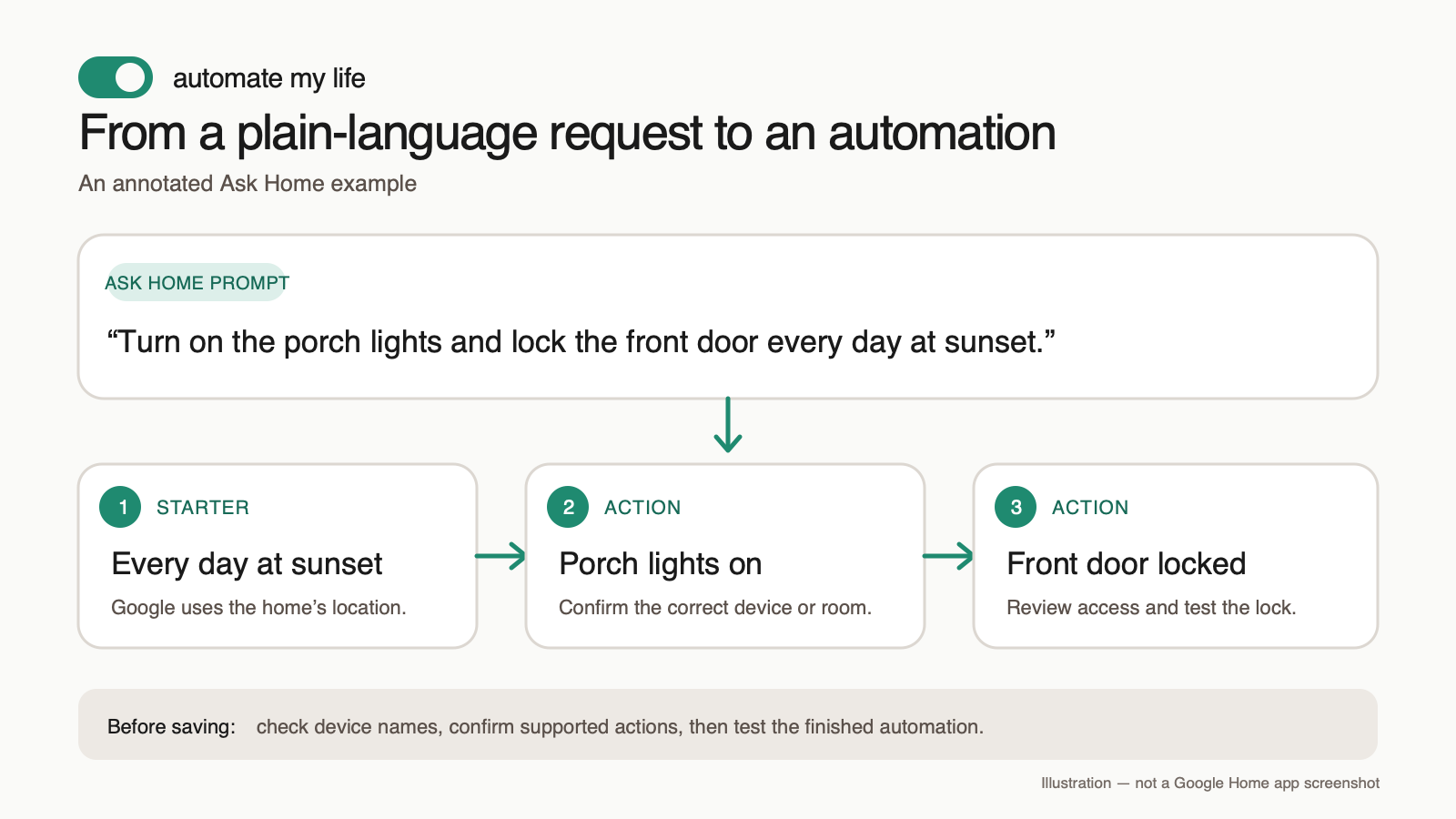
Google warns that automations depend on internet, Wi-Fi, and third-party services and should not be treated as safety-critical. A generated lock or camera automation deserves a manual review and a real test. Also check Google's supported starters, conditions, and actions, because some devices and actions are not yet available in Ask Home or Help me create.
Triggers and actions worth knowing
Google Home automations can start from more than a clock. Useful triggers include sunrise and sunset (Google knows your local times), a device changing state (a door sensor opening), or your arrival and departure based on your phone's location. On the action side, beyond switching devices you can adjust thermostats, broadcast a message to every speaker in the house, play media, and run several device changes in sequence. The household automation editor covers most needs; there is also a more advanced script editor for people who want fine control, but you will not need it to start.
Build a bedtime automation too
The morning automation has a natural partner. Create a second automation called "Goodnight," triggered by the phrase "Hey Google, goodnight" and optionally a late-evening backup time. Add the actions to turn off every light, drop the thermostat a few degrees, lock the smart lock if you have one, turn off the plugs for anything that should not run overnight, and optionally play sleep sounds on the bedroom speaker. Between the morning and goodnight pair, the two moments that used to mean walking around flipping switches now happen on a single phrase each. Build them once and they run every day without another thought.
Use presence and location
Some of the most useful Google Home automations do not start from a clock at all. With Home and Away routines, the system can act on whether anyone is home, based on your phone's location: switch to an away state that turns lights off and the thermostat back when the last person leaves, and a home state that brings the entry lights up when the first person returns after dark. Because this follows your actual movements, it handles irregular days far better than a fixed schedule, and it is the single automation most people say makes the house feel genuinely smart.
Get more from a Nest display
If your hub is a Nest display rather than a speaker, it earns its place beyond voice. It doubles as a digital photo frame from your Google Photos, shows the weather and your calendar at a glance, displays a camera feed when someone is at the door, and gives you a touch panel for your devices when talking to it is inconvenient. Placing one in the kitchen or hallway turns the central automation hub into something the whole household glances at during the day, which makes the smart home visible rather than hidden in an app.
When you want finer control
The household automation editor covers the large majority of what people want. When you outgrow it, Google Home also offers a script editor — a more advanced way to write automations with conditions and multiple triggers in a structured format. You do not need it to run a great morning and goodnight pair, and most people never open it, but it is there when you want a rule the simple editor cannot express. Think of it as the on-ramp to more serious automation without leaving Google Home.
Device, region, and account availability
Availability is still specific to each home. Google's Gemini for Home availability table lists supported countries and notes that language support varies by feature. Existing speakers and displays also need compatible firmware, and the phone needs the current Google Home app. Google currently requires a personal Google account for the upgrade; Workspace accounts are not supported. You may need to wait for the in-app setup notice even when your country, language, and hardware qualify.
Once a home switches to Gemini for Home, everyone in that home can use it on compatible devices, and Google says the home cannot switch back to Google Assistant. Add the other people in your household in the app so device access, voice features, and presence-based starters work as intended. Natural-language automation creation has a tighter account rule: it is limited to home administrators who are at least 18.
See your cameras and doorbell
If you have a Nest doorbell or camera, Google Home becomes the place they live, and that ties into automations too. A Nest display can pop up the doorbell feed when someone presses it, you can ask a speaker who is at the door, and you can build automations around camera events — for example, announcing on every speaker when the doorbell rings so you hear it anywhere in the house. For households that already own Nest cameras, this integration is one of the stronger reasons to make Google Home the hub, because the pieces are built to work together rather than bolted on.
Troubleshooting common issues
When a Google Home automation does not behave, a short checklist clears most cases. Confirm the device is added to the Google Home app and named clearly, because automations can only act on devices the app knows. Check that voice-triggered automations use short, distinct phrases. Make sure the speaker meant to respond is online and not muted. And verify the people who should be able to trigger presence-based routines are added to the home, since access follows the home, not the device. If a device shows offline, power-cycling it and confirming it is on the 2.4 GHz Wi-Fi band resolves the large majority of dropouts. Almost every automation problem traces back to one of those, and each is a quick fix.
Common snags
Two things catch beginners. First, devices must be added to the Google Home app and named clearly before an automation can use them, so set up your lights and plugs first. Second, voice-triggered automations need distinct phrases — "good morning" and "goodnight" are reliable, while long sentences are not. If an automation does not fire, those two checks solve most cases.
Where to take it next
A morning and bedtime automation are the bookends. The next step is connecting more of the house into one flowing sequence — lights, climate, coffee, and a briefing that adapts to the day — which is what a complete morning routine that runs your house covers. If you are still adding hardware, the cheapest place to expand is with a few smart plug automations.
Try another easy win: Add a compatible device from the guide to the best smart plugs for Google Home, put the same assistant to work off the smart speaker with Google Gemini for everyday tasks, then browse more quick beginner automations.
Sources and verification
Last verified: August 3, 2026. This guide was checked against Google's current Gemini for Home overview, voice-assistant compatibility guide, Ask Home feature guide, and automation setup instructions. Google updates feature and country availability over time, so its support pages are the final check for your home.
Leave a Reply